
See which entry, protection, warning, update or exit event was recorded and when.
Trading Terminal / How to use / Alerts
Know what changed. Then verify what is true now.
A screen-by-screen guide to reading the Alert Log, choosing Standard or Tracked Only, tracking one exact trade, understanding every public lifecycle label and configuring App, Desktop and Telegram delivery without confusing a notification with the current trade record.
2 modesStandard or Tracked Only
Exact tradeTrack by proven signal identity
3 channelsApp, Desktop and Telegram
4 × 5Products and alert types
Confirm whether the position is open or closed and read the current level, price and P&L.
Inspect the closed trade receipt, timestamps and realized result after the lifecycle is complete.
Alerts / Product tour
Start with the whole workspace.
Section 07 is a time-ordered ledger. Filters sit above the events; each row tells you the recorded label, symbol, product context, local time, ET, side, grade and route back to the Terminal.
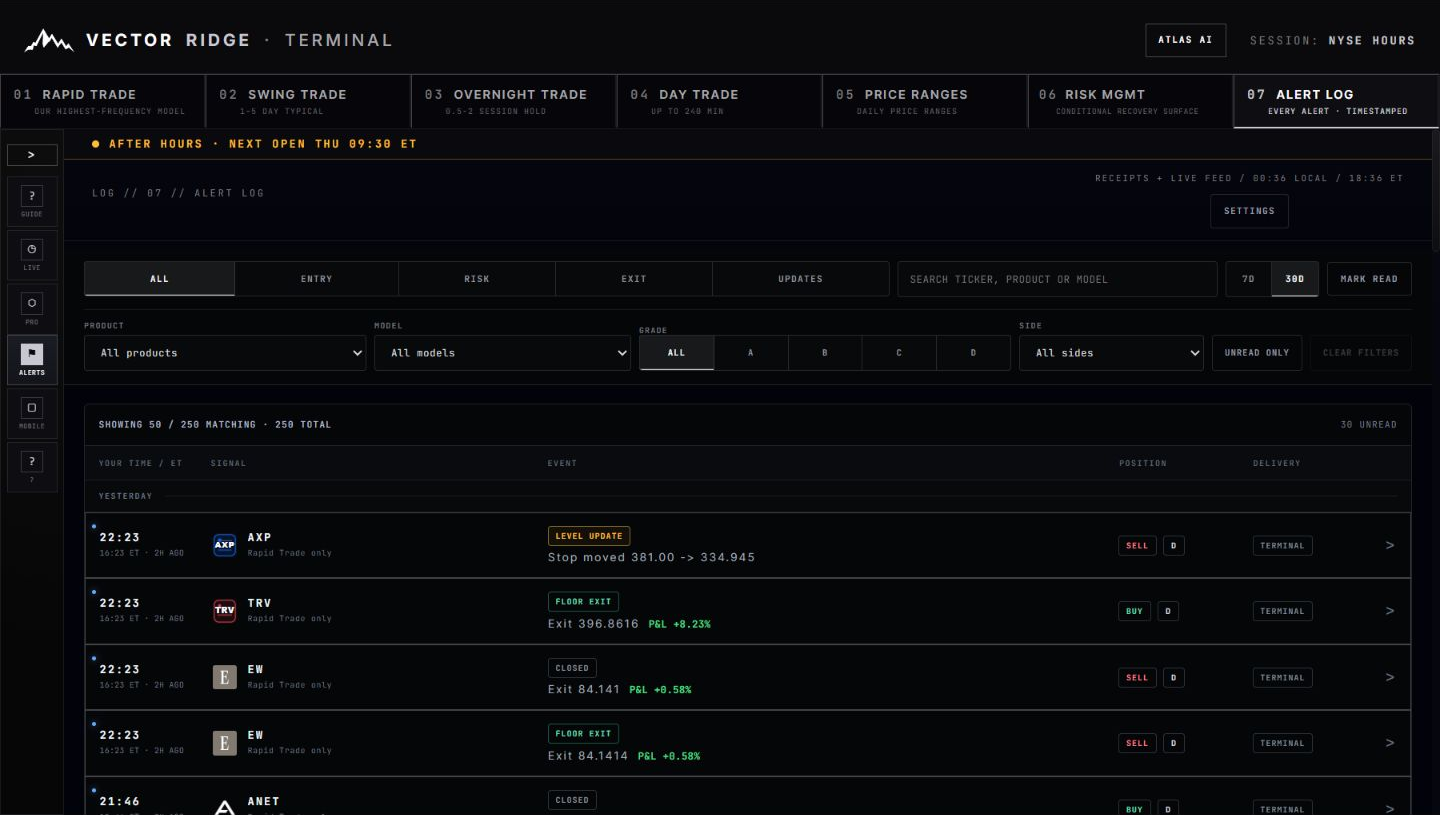
1Open section 07 for the complete alert history available to this account and browser.
2Filter by event class, date window, product, model, grade, side, unread status or ticker text.
3The large time is shown in your local time. The smaller line preserves ET and relative age.
4The public event label says what changed: entry, protection, managed level, warning or exit.
5Side and grade describe the recorded trade context. They do not replace the current trade card.
6Select a row to route to its owning product and, when identity is exact, highlight that trade.
Capture rule: symbols, prices, counts and timestamps are frozen at capture time. Open the live surface for the latest record.
Alerts / Chapter 01
Use the right surface as the authority.
An alert says that an event was recorded. It is not a promise that every other screen still looks exactly as it did at that moment.
The Alert Log is the chronology: it preserves the sequence, label, time and recorded context of each event.
The live trade card is authoritative for the current state, current managed level, current price and live P&L.
Performance is the final realized trade record for a closed position, including entry, exit, timestamps and result.
A push notification is delivery transport, never the authority for the trade record and never proof of a broker order.
Execution boundary: a Terminal alert is not a broker fill, execution or order. It communicates the recorded research lifecycle.
Alerts / Chapter 02
Read the filter bar before the first row.
The status line tells you how many events match, how many exist, whether history is ready and when the ledger last synchronized.
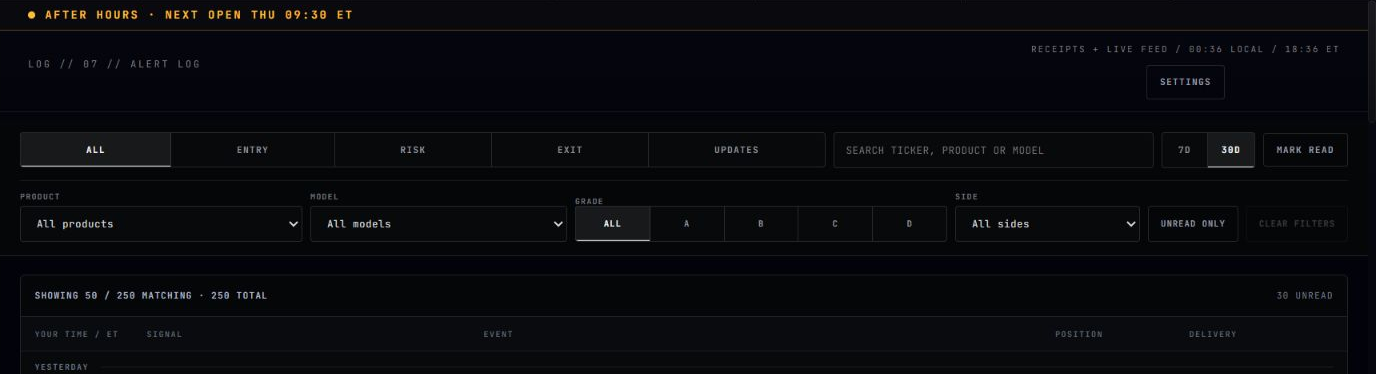
1ALL, ENTRY, RISK, EXIT and UPDATES narrow the ledger by event class without changing trade state.
2Search by ticker or visible text. Clear it first when an expected event seems absent.
37D and 30D change the visible history window. They do not change retention or delivery.
4Product and model controls isolate the owning view or a specific model label.
5Grade, side and unread are additional view filters. They can hide an otherwise valid event.
6Read matching, total, history status and last-sync together before deciding the ledger is stale.
Alerts / Chapter 03
Understand when each surface refreshes.
Refresh cadence explains small timing differences between surfaces. It does not change the timestamp of the underlying event.
The durable event keeps its recorded time and identity.
The Terminal checks for Alert Log updates every 30 seconds while loaded.
The mobile Alerts feed checks every 15 seconds while visible in the foreground.
Opening Alerts, returning focus, reconnecting online or tapping Alerts again triggers a refresh.
Fault tolerance: a transient network or server error preserves the existing visible history instead of replacing it with a blank ledger. Confirmed 401 or 403 access failures may clear protected data.
Alerts / Chapter 04
Separate entry action from position state.
OPEN is the economic trade state. BUY NOW and SELL NOW are entry actions recorded when the model entry fires.
Meaning
Terminal
Mobile
Push
Current position state
OPEN
POSITION OPEN
Open confirmation
Entry fired
BUY NOW / SELL NOW
BUY NOW / SELL NOW
BUY NOW / SELL NOW
Protection active
PROTECTED
CONFIRMED
CONFIRMED
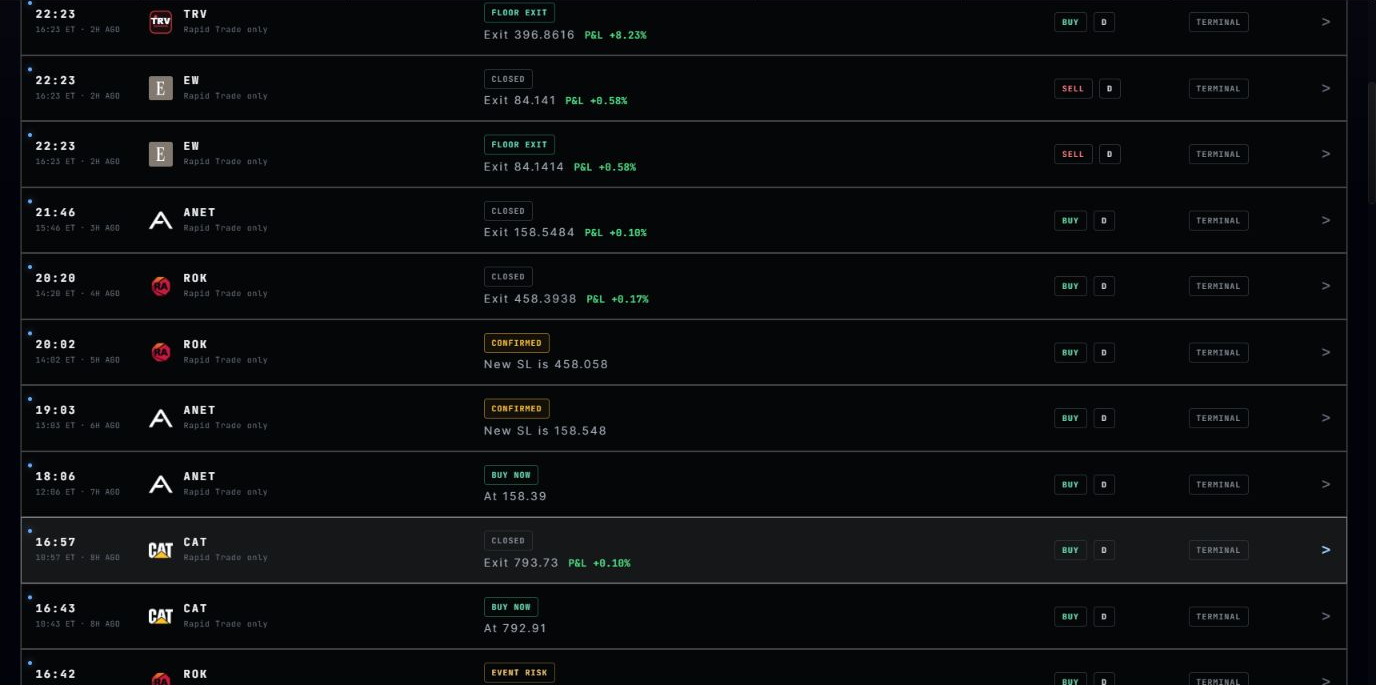
1BUY NOW or SELL NOW is the entry event. The price beneath belongs to that recorded event.
2CONFIRMED records that protection was established. The Terminal setup guide calls the equivalent stage PROTECTED.
3Read downward in time only after checking the date divider and active sort.
4Recorded side and grade remain attached to the event for context.
5The chevron routes toward the related trade; it does not create another entry.
Alerts / Chapter 05
Translate management labels across surfaces.
The same lifecycle event can use a compact label suited to each surface. The meaning stays the same even when the wording differs.
Meaning
Terminal
Mobile
Push
Managed stop or level moved
LEVEL UPDATE
NEW STOP
STOP UPDATED
Approaching target
TARGET NEAR
NEAR TP
Target-near notice
Approaching protection
NEAR STOP
NEAR STOP
NEAR STOP
NEAR STOP is a warning, not an exit, and it does not close the trade. Reopen the current trade card to confirm whether the position remains active and which stop is now authoritative.
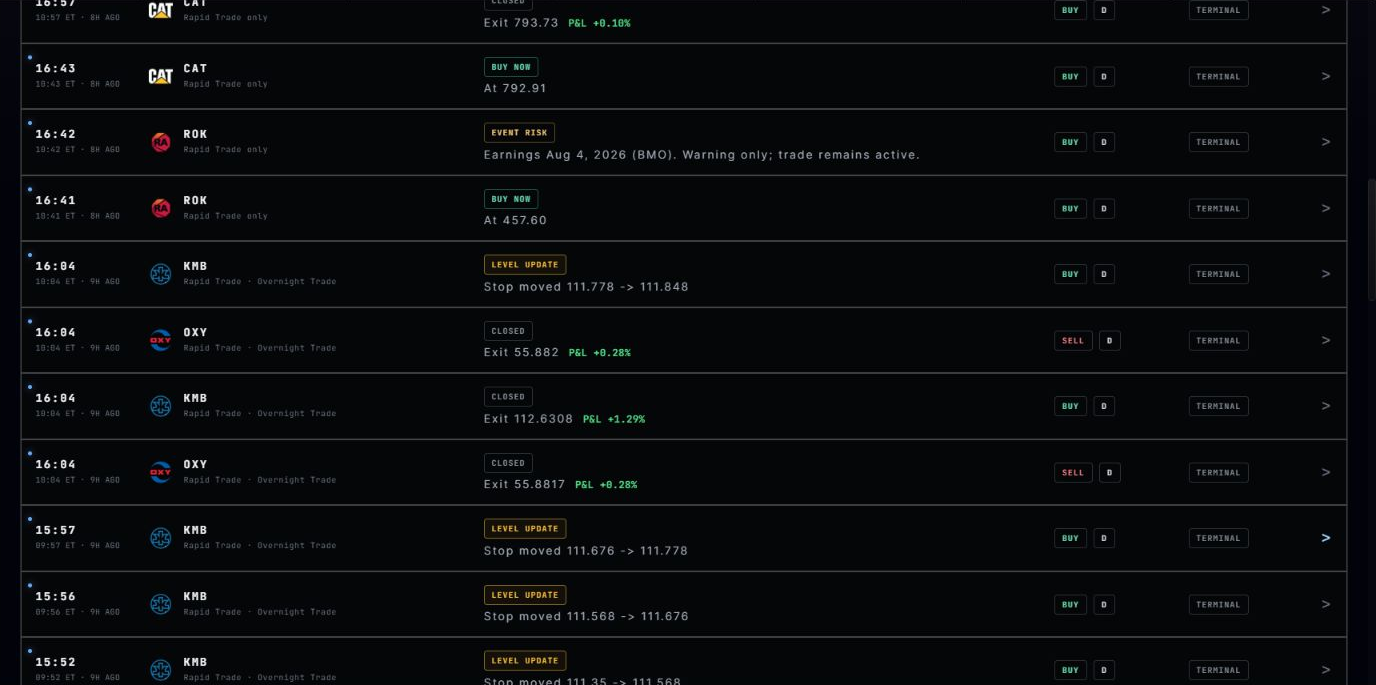
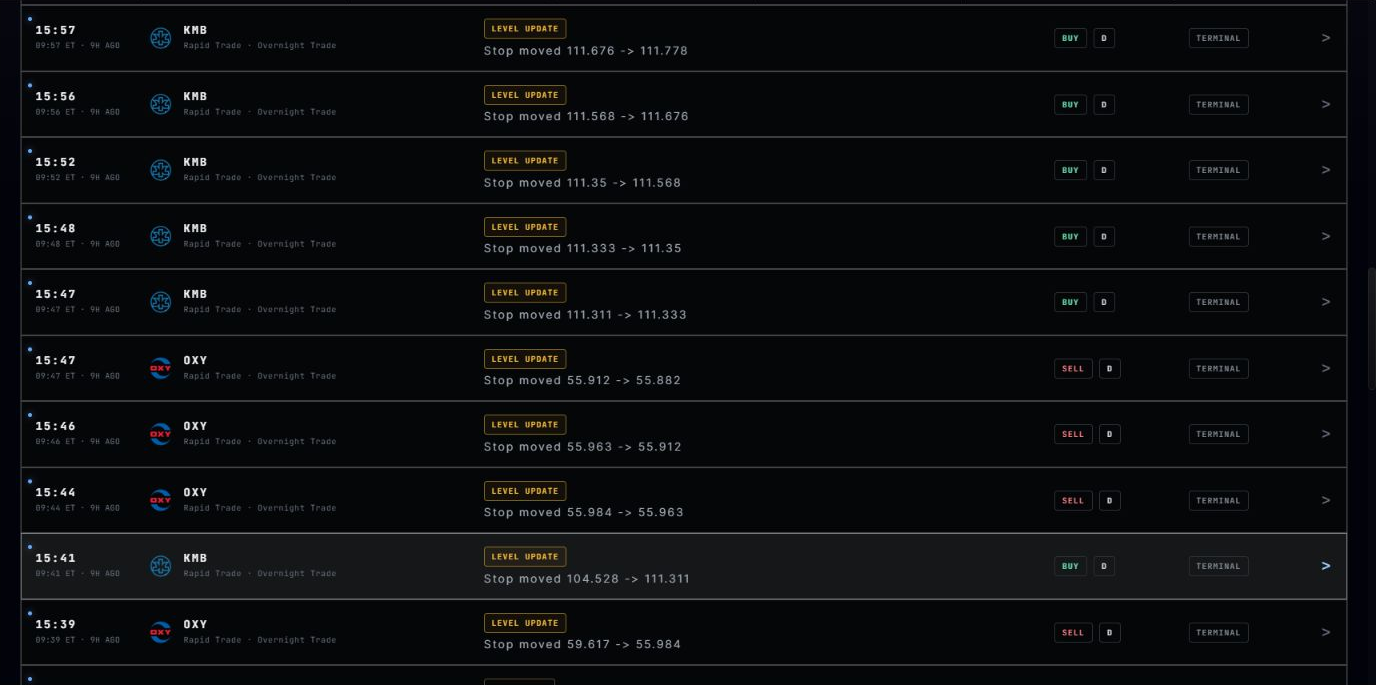
1LEVEL UPDATE marks a managed level change in the Terminal ledger.
2The message shows the recorded change. Use the current card for the latest stop after further updates.
3Local time and ET make the sequence auditable across regions.
4Side, grade and product context remain attached even if the trade later closes.
5Open the related trade when the alert message and current card need reconciliation.
Alerts / Chapter 06
Treat EVENT RISK as context, not an instruction.
EVENT RISK is warning only and not an order. It flags a scheduled earnings or macro hazard near the trade lifecycle.
Before closure
The card may say the trade remains active. A warning does not change side, entry, stop or state.
After closure
A closed card can retain EVENT RISK only when durable recorded event evidence belongs to that trade.
Recorded wording
Closed history can say “Recorded while the trade was active” so the warning is not mistaken for a current hazard.
What to do
Read the event date and timing, then return to the owning card for the position state.
1Rapid, Swing, Overnight or Day labels identify the product views attached to the recorded event.
2EVENT RISK is visually distinct so it remains visible alongside entry and management events.
3The message carries date and session timing plus an explicit warning-only status.
4Side and grade belong to the recorded trade context, not to the scheduled event itself.
5Use the row route to inspect the trade without creating a duplicate position.
Alerts / Chapter 07
Read the exact close reason.
An exit label is evidence about how the recorded lifecycle ended. Do not infer the reason from profit, loss or the final stop value.
Meaning
Terminal
Mobile
Push
Target close
TARGET HIT
TP HIT
TP HIT
Active stop close
RISK EXIT
SL HIT
SL HIT
Protected or trailing-floor close
FLOOR EXIT
TRAIL STOP HIT
TRAIL STOP HIT
Time-based close
CLOCK EXIT
CLOSED
CLOSED
TARGET HIT is a target exit or close. CLOCK EXIT is a time or clock-rule close. TRAIL STOP HIT requires the exact recorded close reason or receipt and is never inferred from positive P&L or profit.
Two close-looking rows: a manager exit event such as FLOOR EXIT and the final CLOSED lifecycle receipt can share a timestamp. They describe one economic trade, not two results.
Alerts / Chapter 08
Build a filter sequence that cannot hide the answer.
When troubleshooting, broaden first and narrow second. A stale search, short date window or unread-only filter is often the entire explanation.
ALLSEARCH CLEAR30DALL PRODUCTSALL GRADES
Select ALL, clear search and turn off unread-only.
Use 30D if the event is outside the 7D window.
Narrow by product, model, grade or side only after the row appears.
Mark visible events read when you want a clean browser-local review queue.
Alerts / Chapter 09
Do not confuse unread, attention and delivery.
They are three separate concepts with separate storage and proof.
Unread status is browser-local, stored on this browser, and does not sync as a cross-device receipt.
The Alerts bottom-nav badge means needs attention, not unread, and is not proof of delivery.
Provider acceptance does not prove OS display or that a person read the notification.
The event can exist in history even when push is unavailable, blocked or dismissed.
Alerts / Chapter 10
Select the event, then verify the trade.
A Terminal row can route to Rapid, Swing, Overnight or Day and highlight the matching trade when the durable identity is sufficient.
Use the chevron or row action rather than manually retyping the ticker.
The Terminal opens the owning product view declared by the event.
Trade identity and event time disambiguate reused symbols and cross-product projections.
Read the highlighted live card or closed receipt after navigation.
Fail-closed routing: ambiguous or stale matches fail closed instead of highlighting a plausible but unproven trade.
Alerts / Chapter 11
Read the mobile card from top to bottom.
The mobile feed compresses event, state, side, grade, event risk, entry, live or closed price, P&L, stop and chart access into one card.
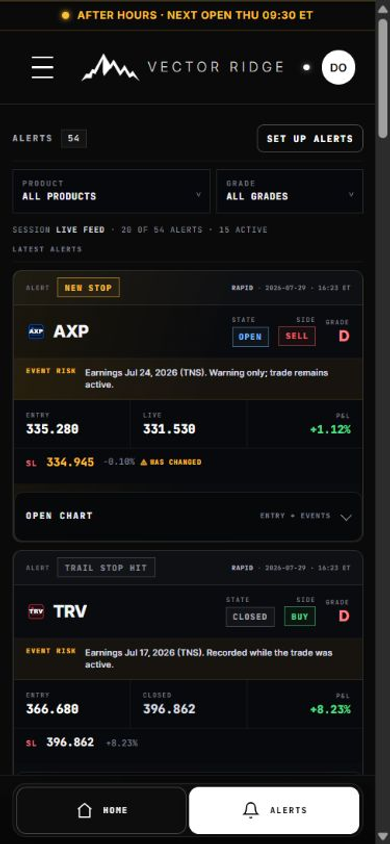
1Mobile Product and Grade controls filter the feed only. They are separate from delivery preferences.
2NEW STOP is the mobile label for a managed stop update.
3State, side and grade show the trade context alongside the alert.
4EVENT RISK stays a warning band and explicitly says whether the trade remains active.
5OPEN CHART expands recorded entry, events and price context inside the card.
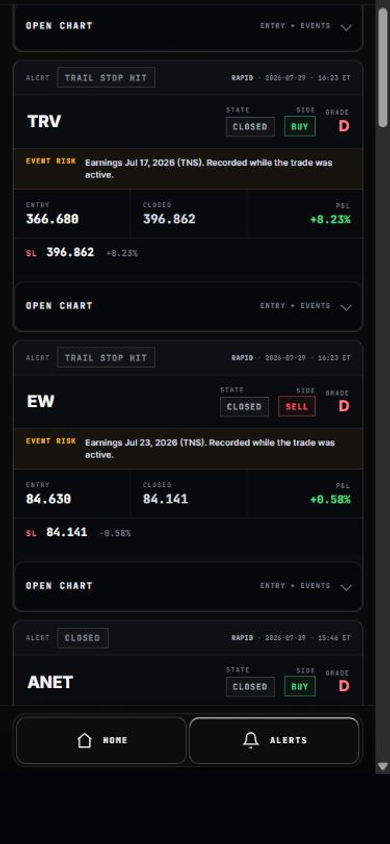
1TRAIL STOP HIT appears only when that close reason is recorded for the trade.
2CLOSED confirms the lifecycle is final; side and grade remain historical context.
3Entry, closed price and P&L summarize the final record without replacing Performance detail.
4The chart drawer remains available after closure for entry and event review.
Alerts / Chapter 12
Open the chart without leaving the alert.
The card drawer brings the Terminal-style position summary into mobile: entry focus, time windows, entry, close or live value, P&L and stop.
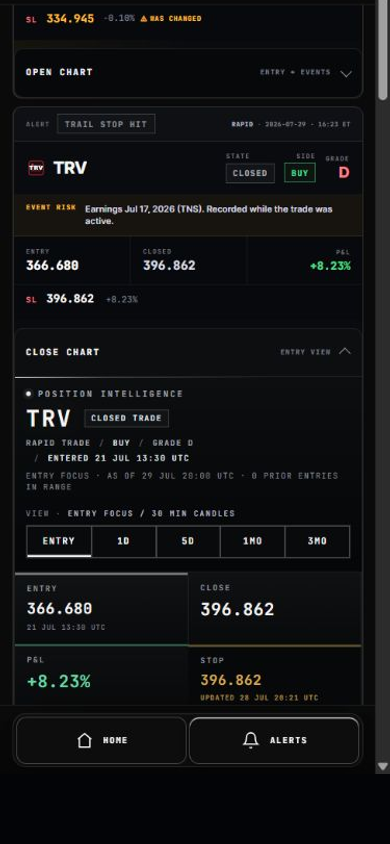
1CLOSE CHART collapses only the drawer; it does not dismiss or mark the alert.
2Position identity, product, side, grade and entered time confirm which trade the chart belongs to.
3ENTRY, 1D, 5D, 1M and 3M change the visible candle window without changing the receipt.
4Entry, live or close, P&L and stop are sourced from the trade record attached to the card.
Alerts / Chapter 13
Learn every Terminal label before changing delivery.
The Alert Setup & Guide panel is both a glossary and a device-setup surface. Read the lifecycle glossary first.
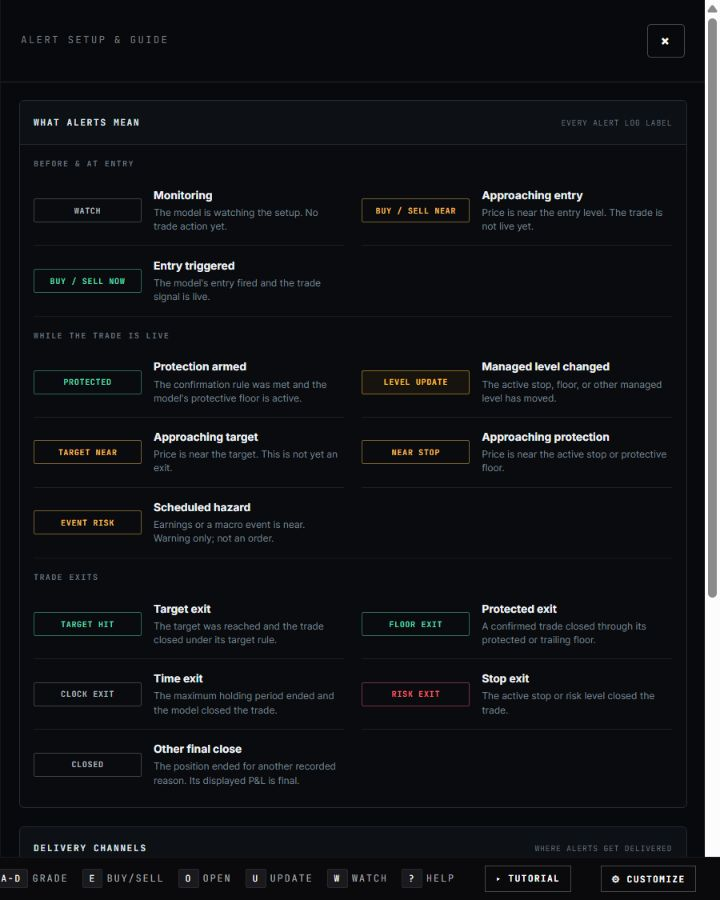
1WATCH and BUY / SELL NEAR describe monitoring and approach. The trade is not live yet.
2PROTECTED means the continuation rule was met and a protective floor is active.
3LEVEL UPDATE means an active stop, floor or managed level moved.
4EVENT RISK is scheduled hazard context: warning only, not an order.
5TARGET HIT, FLOOR EXIT, CLOCK EXIT, RISK EXIT and CLOSED distinguish final lifecycle reasons.
Alerts / Chapter 14
Choose every trade or only the trades you track.
Both modes include eligible new BUY/SELL entries for your enabled products and grades. The difference starts after entry: Standard keeps the selected follow-up categories available across all eligible trades; Tracked Only requires you to select the exact trade first.
Use this when you want your enabled stops, targets, level changes, exits and event-risk updates across every eligible trade.
Every eligible new entry remains included. Later enabled updates require that exact trade to be actively tracked.
The control appears only on a proven open trade. It never guesses by ticker, so a separate same-symbol trade stays separate.
The active label confirms tracking. “Stops, targets & exits on” explains the scope; tap again to stop.
Step
What you do
What you see
What it changes
1. Choose Tracked Only
Open Set Up Alerts and select Tracked Only.
The selected mode is visibly highlighted.
New entries remain eligible; untracked follow-ups are excluded.
2. Open a new entry
Use the BUY/SELL alert to inspect the exact open trade.
The eligible card shows Track followed by its ticker.
Nothing is tracked until you tap that exact control.
3. Track the trade
Tap Track ISRG on the trade you want to follow.
The control becomes ✓ Tracking ISRG.
Your enabled follow-up categories can now notify for that identity.
4. Stop tracking
Tap the active control again.
The label returns to Track ISRG and follow-ups show off.
Later follow-ups are excluded unless you track it again.
5. Trade closes
No extra action is required.
The exact enabled terminal event can complete the lifecycle.
Tracking ends after the trade is closed.
Do not confuse the two controls: Standard or Tracked Only decides which trades can produce follow-ups. Simple or Advanced decides which event categories you want. Products and grades are additional narrowing choices, so all four checks must agree.
One exact tracking record: tracking belongs to the proven trade identity on your account. App, Desktop and Telegram still keep their own delivery-mode calibration, so choose Tracked Only separately on every channel where you want this behaviour.
Forward-looking event risk: old earnings or scheduled-risk dates do not create new notifications. Event-risk delivery remains subject to the active trade, your selected event type and the exact tracking gate.
Alerts / Chapter 15
Start Simple. Use Advanced only when you want control.
Delivery has four independent narrowing controls: products, grades, Standard or Tracked Only, and five lifecycle categories. Simple summarizes category coverage; Advanced exposes the five categories. Both views edit the same saved preference set.
Category
Includes
When to keep it on
Scope
New trades
BUY NOW, SELL NOW, position opens
Fresh-entry notifications; this stays on in Tracked Only
Every enabled product
Level changes
Stop, floor, entry and managed-level changes
When moved protection must reach you
Every enabled product
Near levels
Approaching entry, stop or target
When proximity warnings are useful
Every enabled product
Exits & closed
Target, stop, trailing, clock and other closes
When you expect a terminal close notification
Every enabled product
Event risk
Earnings and scheduled-risk warnings
When scheduled context should reach you
Every enabled product
One preference set: alert types apply across every enabled product and selected grade. Changing from Simple to Advanced does not change delivery. Product, grade, alert-type and delivery-mode choices narrow eligibility independently. Account and trial messages are unaffected.
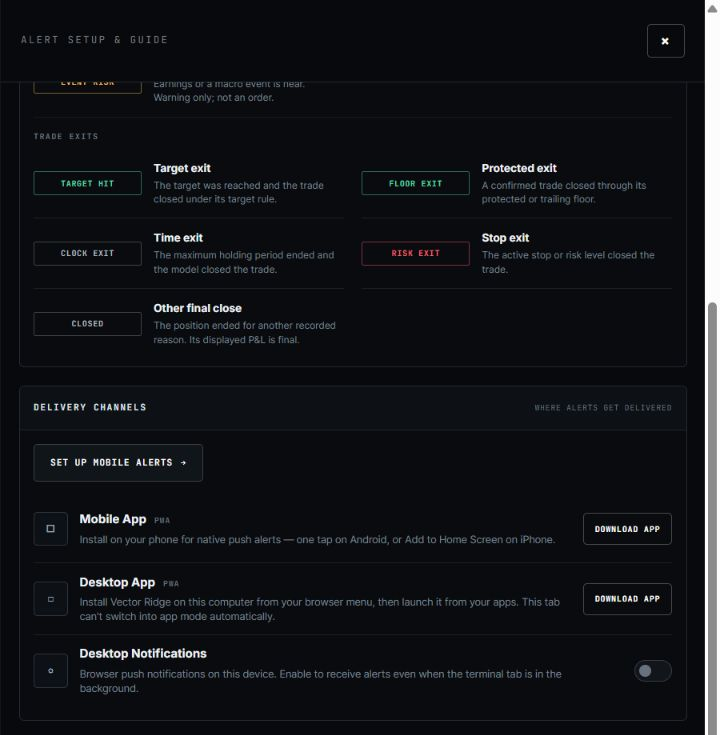
1Set Up Mobile Alerts opens the phone-first installation and permission path.
2DOWNLOAD APP routes to the supported PWA install surface for that device.
3The desktop PWA is a separate installation from the mobile PWA.
4Desktop notifications require browser permission on the current device.
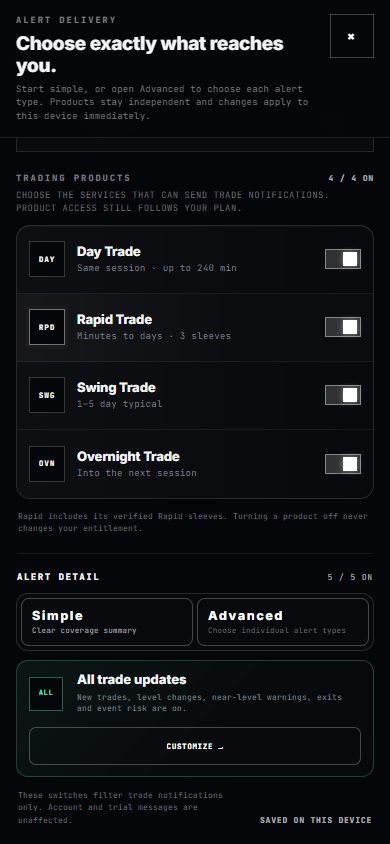
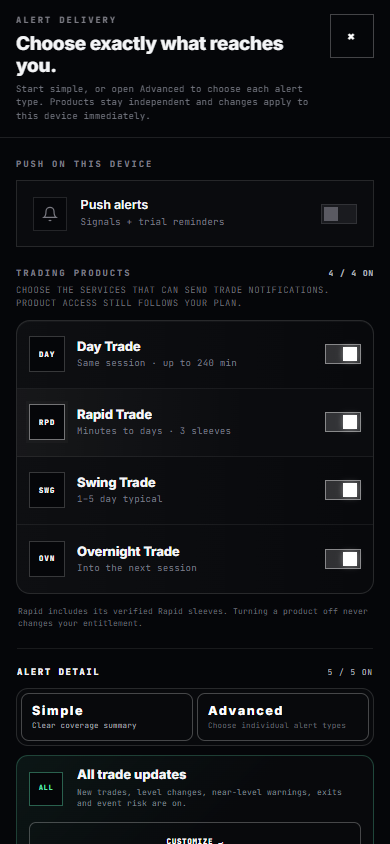
1The counter confirms how many of the four product switches are enabled.
2Day, Rapid, Swing and Overnight independently narrow delivery. They never grant or remove plan access.
3Simple and Advanced are two views of the same choices. Merely switching views changes nothing.
4All trade updates means all five lifecycle categories are on. Customize opens the individual switches.
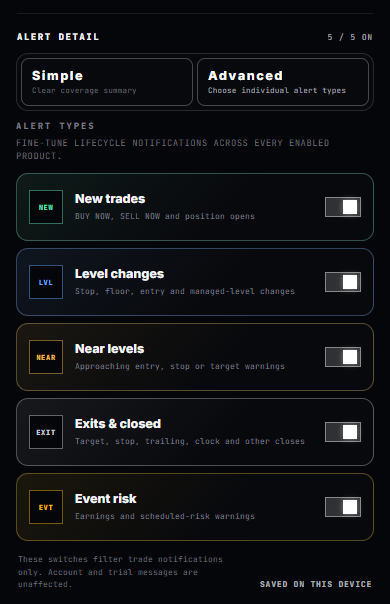
1Advanced reveals the underlying categories. It is not a different account tier or second profile.
2Level changes includes stop, floor, entry and other managed-level changes.
3Exits & closed includes target, stop, trailing, clock and other terminal events.
4Event risk is independent, so scheduled warnings can be included or suppressed deliberately.
Pause rule: turning all four products off pauses trade alerts on that device. In Standard, turning all five alert types off does the same. In Tracked Only, New trades stays on so you can choose a trade; having no tracked trades suppresses follow-ups, not eligible new entries. Feed filters remain separate from delivery preferences.
Alerts / Chapter 16
Install first, permit second, enable third.
Push requires an installed PWA, a supported browser, a user tap and OS permission. The app never auto-enables notifications.
1Open Set Up Alerts from the mobile feed to reach this device-level sheet.
2Status explains the current blocker, including Not supported in this browser or Blocked in device settings.
3A user gesture or tap is required to enable push and request permission.
4Product, grade, mode and alert-type preferences are saved on this device; calibrate every channel you use.
Install the app from the browser share menu, open the installed PWA, then enable push from Set Up Alerts.
Use the install prompt, launch the installed PWA and approve notifications when prompted by your tap.
Install the desktop PWA if desired and permit notifications for this site on this computer.
There is no email fallback. Link Telegram in Settings, then choose products, grades, follow-ups and Standard or Tracked Only inside the bot. Use /alerts to change them later.
Recommended coverage: set up Mobile App, Desktop and Telegram. Each channel has its own delivery state and mode, so one successful setup does not prove the other two are ready.
Alerts / Chapter 17
Troubleshoot in the right order.
First prove the event exists. Then prove the surface refreshed. Only then diagnose the delivery channel.
Reset ALL filters, clear search, use 30D, confirm access and read the last-sync line. Reload only after checking the active slice.
Open Alerts again to refresh, clear Product and Grade feed filters, confirm the app is online and verify the account still has product access.
Confirm the installed PWA, push switch, OS permission and device settings. Provider acceptance is not a display or read receipt.
The alert is the event at its recorded time. The live card may have advanced to a newer stop, price or final state.
Do not force a symbol-only match. Exact identity is required; ambiguous matching must fail closed.
Read the exit event and final CLOSED receipt as one economic trade, then use Performance for the final realized result.
This is expected in Standard. In Tracked Only, use the latest eligible open entry; closed, ambiguous or identity-incomplete trades stay fail-closed.
Confirm the card says ✓ Tracking plus the exact ticker, then verify the matching product, grade and event category are enabled on that channel.
Confirm the channel is not still on Standard. In Tracked Only, tap the active tracking control on any trade you no longer want to follow.
Reliability rule: the Alert Log, current trade card, expanded chart and Performance receipt are complementary evidence surfaces. Use each for the job it owns.