
Swing Trade gives a position more room than an intraday card while preserving a defined manager level.
Trading Terminal / How to use / Swing Trade
Follow a Swing Trade from signal to record.
A screen-by-screen guide to finding the newest instruction, reading the current stop, following every update and verifying the final trade in Performance.
1-5 sessionsTypical management window
20 sessionsPublished maximum
One cardEntry, updates and close
Exact recordTimestamped in Performance
Read the newest primary state before interpreting grade, price, P&L or a warning badge.
Use the chart and Alert Log while open; use Performance after the trade closes.
Swing Trade / Product tour
Move from the board to the exact record.
The product works as one connected path: select Swing Trade, identify the current state, inspect the chart when needed, then verify the final close in Performance.
The settled Swing Trade board
The board combines open positions, recent closes and entry-near candidates. They share one table, but their state badges and price fields are deliberately different. Read one complete row at a time.
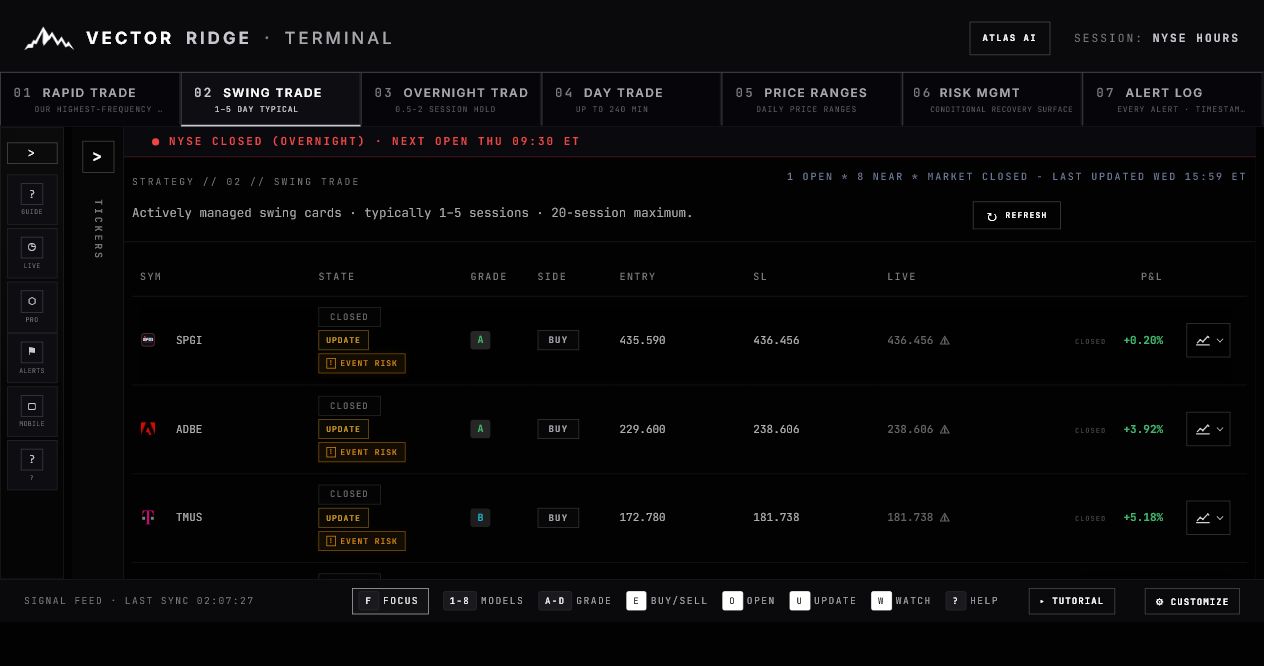
1The selected tab establishes the product horizon. Confirm Swing before reading any row.
2The summary separates open positions from entry-near candidates and shows when the book was refreshed.
3The primary state is first. UPDATE or EVENT RISK adds context without replacing OPEN or CLOSED.
4SL is the current published manager level for an open position. Near-entry candidates have no stop yet.
5Open rows use the live reference. Closed rows retain the recorded close and final result.
Swing Trade / Chapter 01
Know what Swing Trade is asking you to do.
This is a managed multi-session product, not a promise to hold for a fixed number of days and not an invitation to infer a trade before the entry instruction appears.
Selective entry
WATCH and ENTRY NEAR are preparation states. The actionable direction arrives as BUY NOW or SELL NOW.
Multi-session management
The typical window is one to five sessions, with a published 20-session maximum.
Current level authority
The row shows the newest published stop. The chart and Alert Log preserve when that level changed.
One economic record
A Swing position can also be distributed through Rapid, but Performance records it once.
Do not anticipate an entry. ENTRY NEAR means the setup is close to its model level. It is not the same as BUY NOW, SELL NOW or OPEN.
Swing Trade / Chapter 02
Read one complete card before moving to the next.
The fastest reliable reading order is primary state, side, entry, current stop, live or closed price, then P&L.
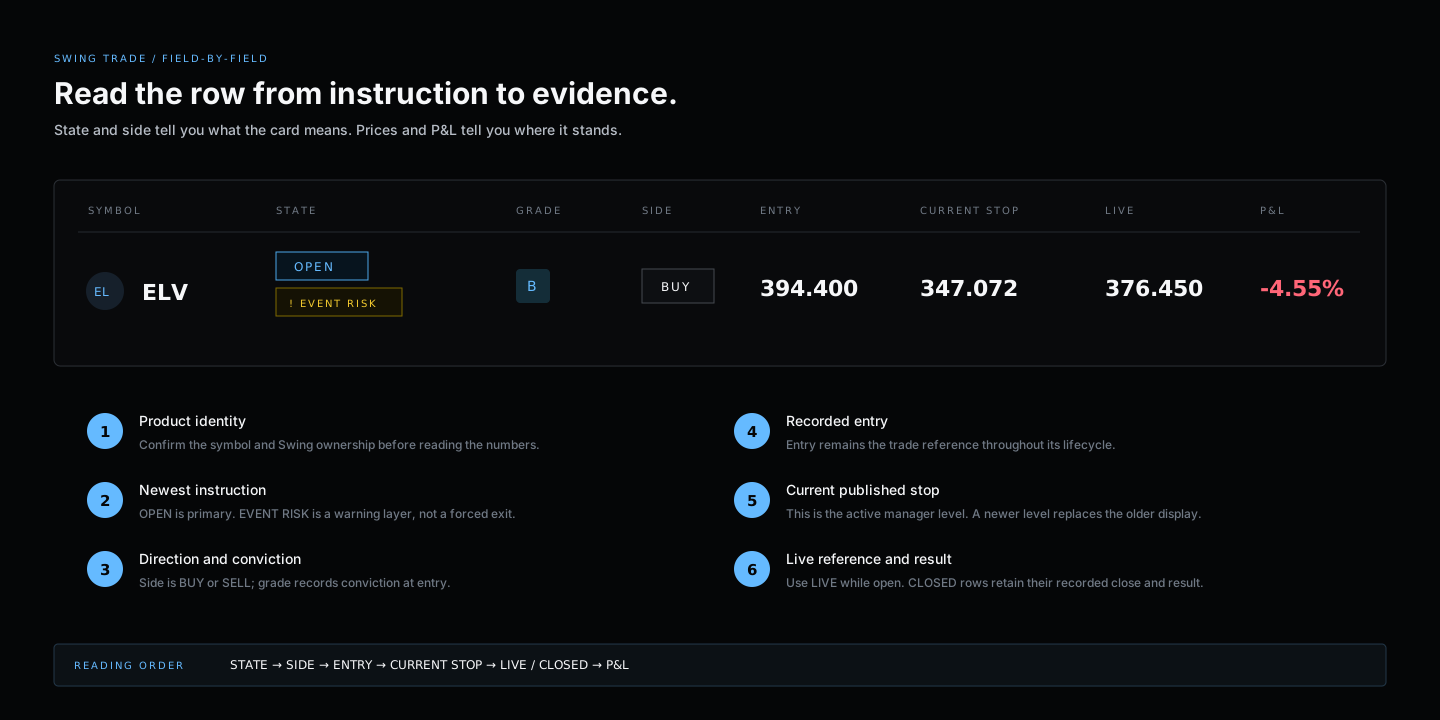
1Confirm the symbol and product ownership. A Swing badge inside Rapid still belongs to Swing.
2OPEN is the primary lifecycle state. EVENT RISK is a warning layer.
3Grade records conviction at entry; side records BUY or SELL direction.
4Entry remains the recorded reference for the position.
5The stop is the current published manager level, not necessarily the original level.
6Open P&L uses the current reference. The final result belongs to the closed receipt.
Field reference
| Field | What it answers | What not to assume |
|---|---|---|
| State | What is the newest instruction or lifecycle status? | A warning badge is not automatically the primary instruction. |
| Grade | What conviction was recorded at entry? | Grade does not replace the stop or close state. |
| Side | Is the position BUY or SELL? | Do not infer direction from green or red P&L. |
| Entry | What price anchors the recorded trade? | ENTRY NEAR is not yet a completed entry. |
| SL | What manager level is currently published? | The displayed value may have changed since entry. |
| Live / Closed | What price is active now, or what close was recorded? | A delayed live reference is not a broker quote. |
| P&L | How is the position performing relative to its recorded side? | Open P&L is not the final realized result. |
Swing Trade / Chapter 03
Separate the primary state from the context around it.
A Swing card can carry several badges. Their order matters: the lifecycle instruction is primary; updates and event warnings explain what changed around it.
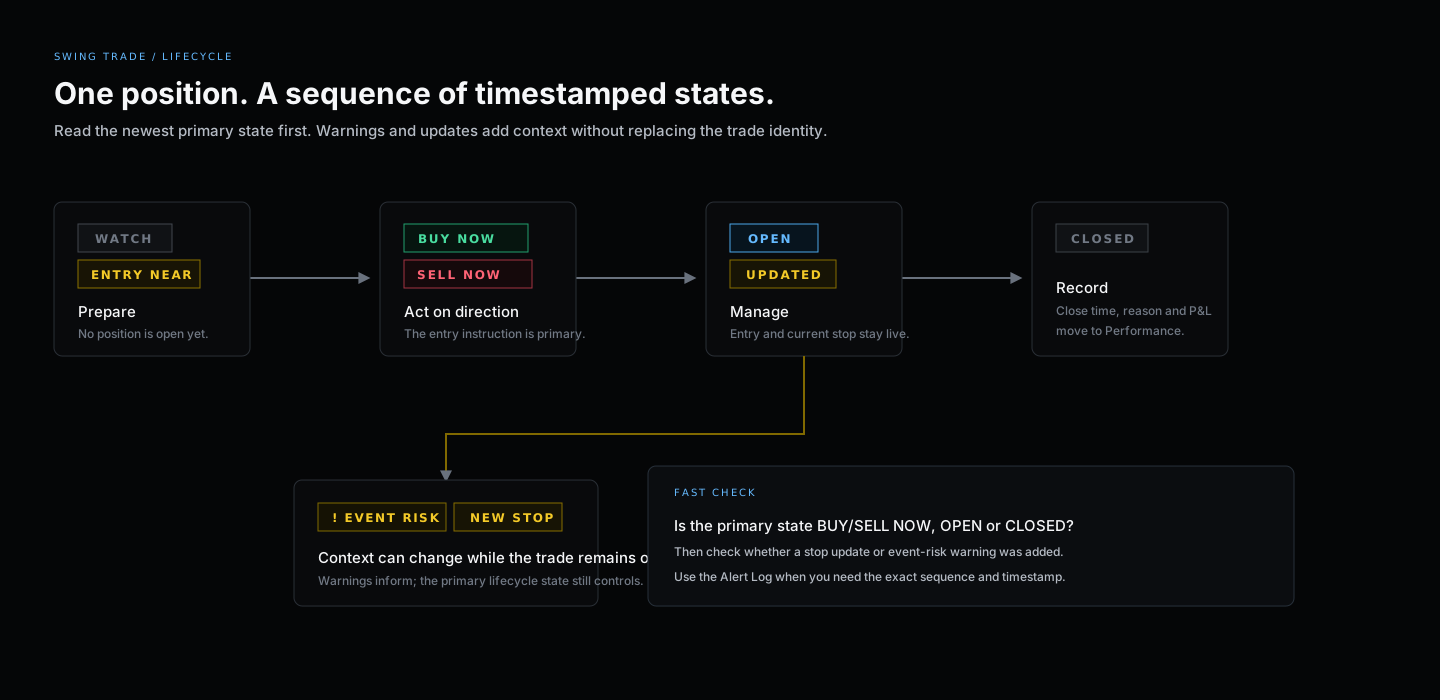
1WATCH and ENTRY NEAR prepare you for a possible signal; no position is open.
2BUY NOW or SELL NOW is the actionable entry instruction.
3OPEN confirms the position. UPDATED or NEW STOP tells you management changed.
4CLOSED ends the live lifecycle. Performance owns the final timestamped result.
| Badge | Meaning | Your next check |
|---|---|---|
| WATCH | Setup is monitored but not actionable. | Wait for an entry instruction. |
| ENTRY NEAR | Price is close to the model entry. | Confirm distance and direction; do not pre-enter. |
| BUY NOW / SELL NOW | The entry instruction is active. | Read the entry price, side and timestamp. |
| OPEN | The position has a recorded entry. | Monitor current stop, live reference and P&L. |
| UPDATED | A managed field changed. | Hover the warning and open the chart for history. |
| EVENT RISK | A scheduled catalyst is attached. | Read the event and date; it is warning-only unless the primary state changes. |
| CLOSED | The trade is no longer live. | Use the expanded Performance record for the final receipt. |
Swing Trade / Chapter 04
Your 90-second daily Swing workflow.
The routine is intentionally short: find what changed, verify managed levels, then use the event stream only when you need exact chronology.
Open Swing Trade and press Refresh
Confirm the session banner, last-updated timestamp and the open/near summary before reading rows.
Scan primary states
Look first for BUY NOW, SELL NOW, OPEN and CLOSED. Treat UPDATE and EVENT RISK as secondary layers.
Compare entry, current stop and live reference
This tells you where the position stands without opening every chart.
Open only the chart that needs explanation
Use it for entry timing, stop-change history, price behavior or a close marker.
Use Alert Log for chronology
Confirm the exact sequence when a push notification or old screenshot no longer matches the current card.
Use Performance after close
The expanded record is the authority for entry, exit, duration, close reason and realized result.
Swing Trade / Chapter 05
Treat the displayed stop as the current level.
Swing positions can be actively managed across sessions. A newer stop replaces the older value on the row while the chart preserves the change.
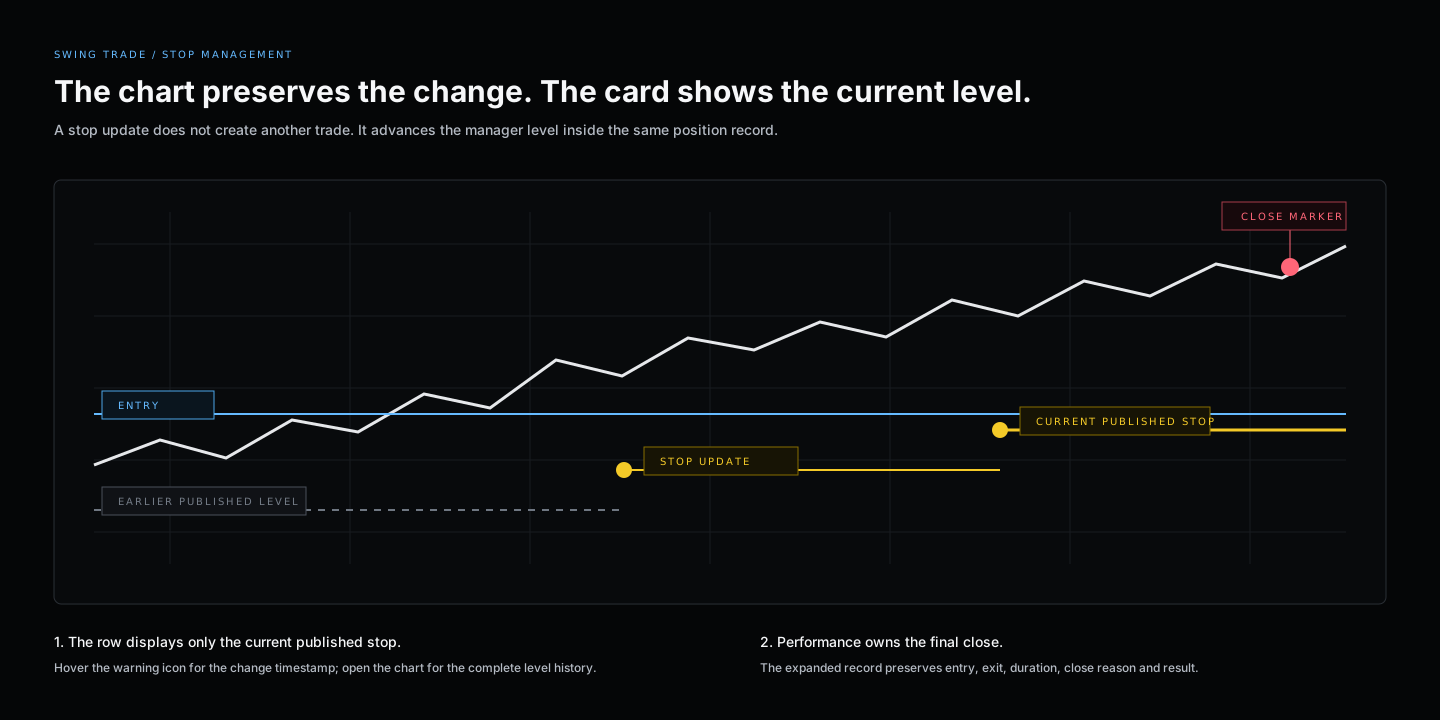
1An earlier published level remains historical evidence; it is not the current instruction.
2A NEW STOP or UPDATED event timestamps the level change inside the same trade.
3The row and chart headline show the current published manager level.
4After closure, the chart marks the recorded close and Performance preserves the final receipt.
If the stop changed, use the newest value. The warning icon keeps the row compact; hover it for the change note, then open the chart when you need the exact time.
Swing Trade / Chapter 06
Use the chart to answer one specific question.
The chart shell is shared across Terminal products. On Swing Trade, its multi-session views are especially useful for separating the entry event from later management.
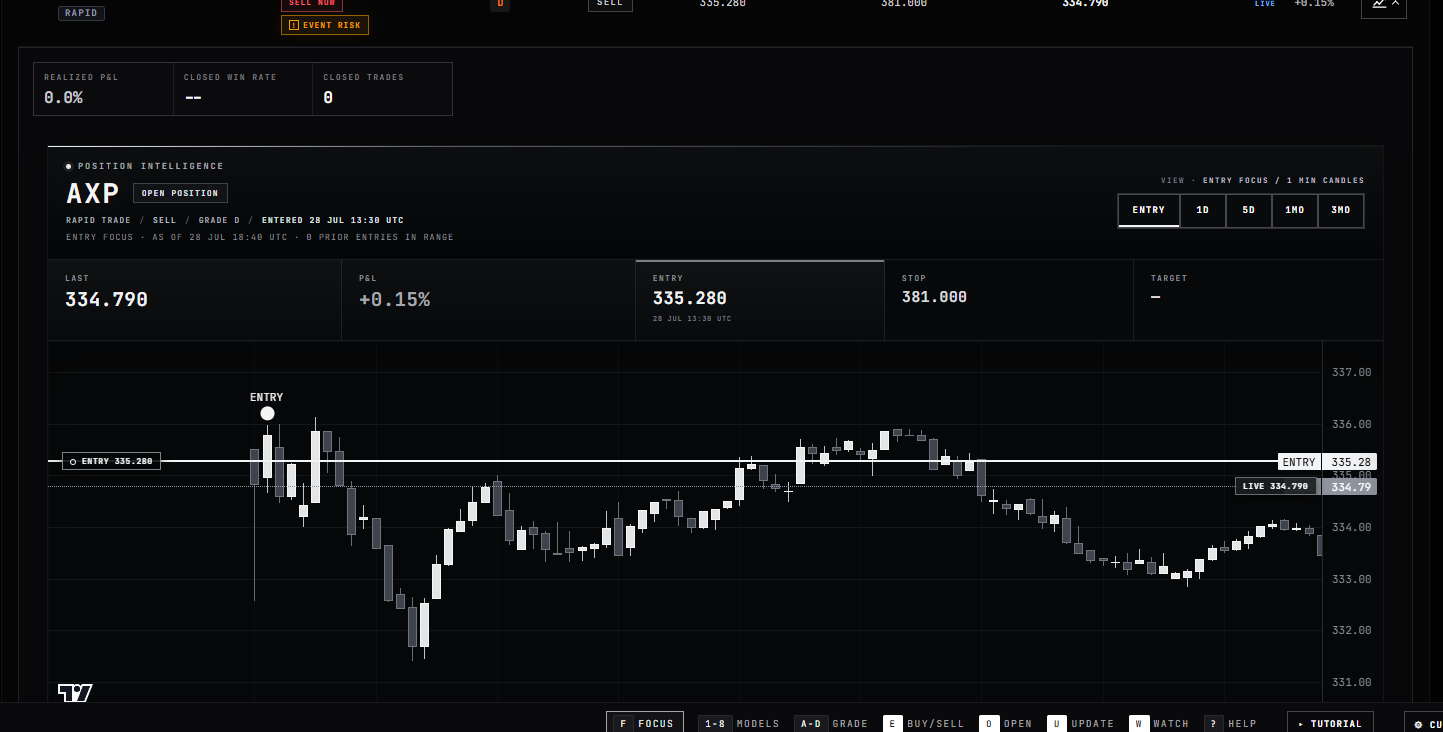
1ENTRY focus centers the recorded entry and its timestamp.
2The headline keeps entry, current stop, live or closed price and P&L visible above the chart.
3Use 1D for detail, 5D for the working move and 1M or 3M for broader structure.
4Markers distinguish the current entry, prior entries, stop updates, close and earnings events.
Event focus
Best for confirming the recorded entry time and the immediate price response.
Intraday detail
Use when you need the most granular view around a same-day update.
Working Swing window
Usually the clearest view of a position moving across several sessions.
Structure
Use for broader context, not to replace the published entry or stop.
Swing Trade / Chapter 07
Read alerts as a sequence, not isolated messages.
The Alert Log answers what changed and when. It is the fastest way to reconcile an entry instruction, later stop update, event warning and eventual close.
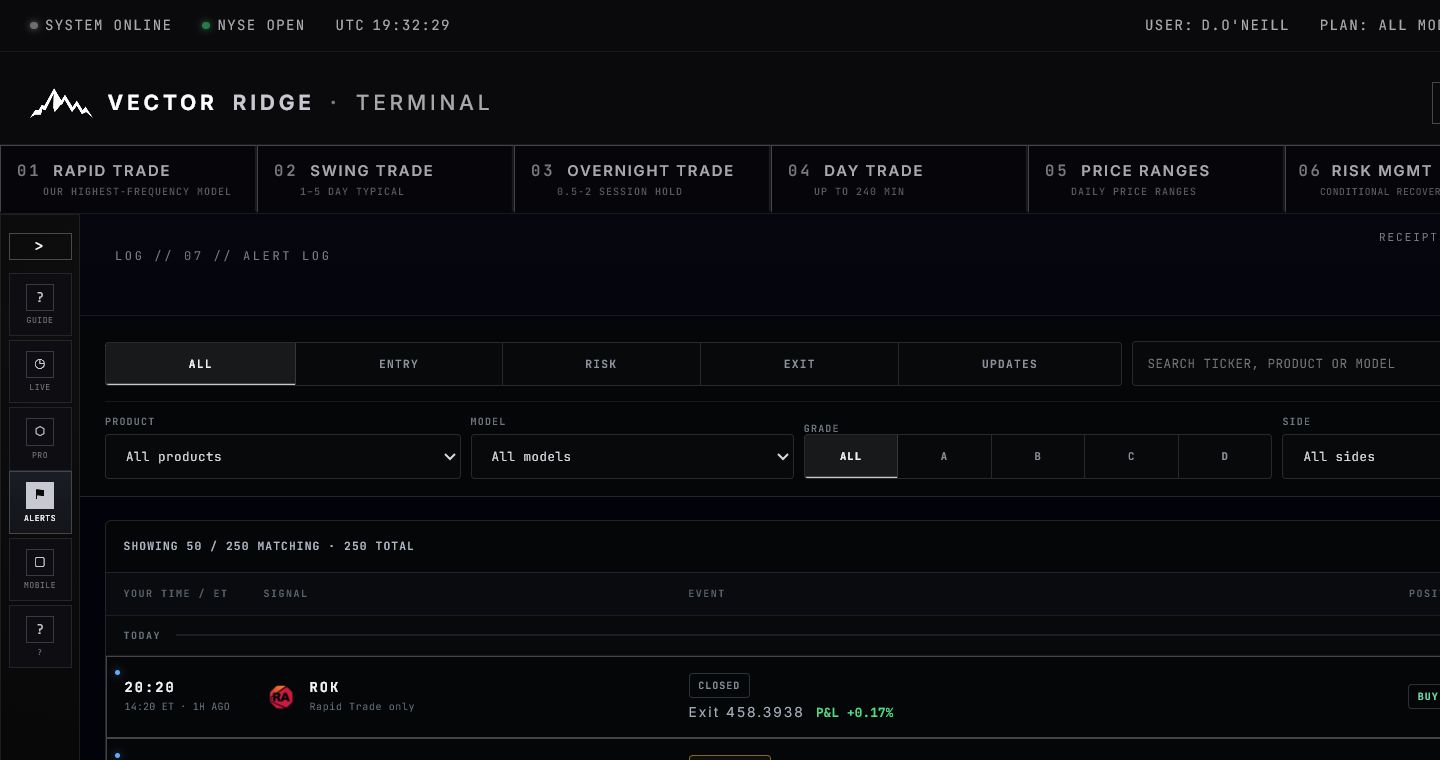
1The left edge records when the event was published.
2A Swing trade may also list Rapid distribution without creating another trade.
3The event label tells you whether this was entry, open confirmation, stop update, event risk or close.
4Open the affected trade to return to its current card and chart.
The normal Swing sequence
BUY NOW or SELL NOW
The direction and entry reference are published.
OPEN
The position receipt confirms entry and begins live management.
NEW STOP / UPDATED
The current manager level changes. The phone notification should describe this event, not repeat the original entry instruction.
EVENT RISK
A scheduled catalyst is attached as a warning while the trade remains active.
CLOSED
The alert states the position closed. Performance becomes the final authority.
Swing Trade / Chapter 08
Verify the close in Performance.
Performance deduplicates every economic trade and gives the final record more space than the live board: exact times, prices, duration, reason, evidence and chart.
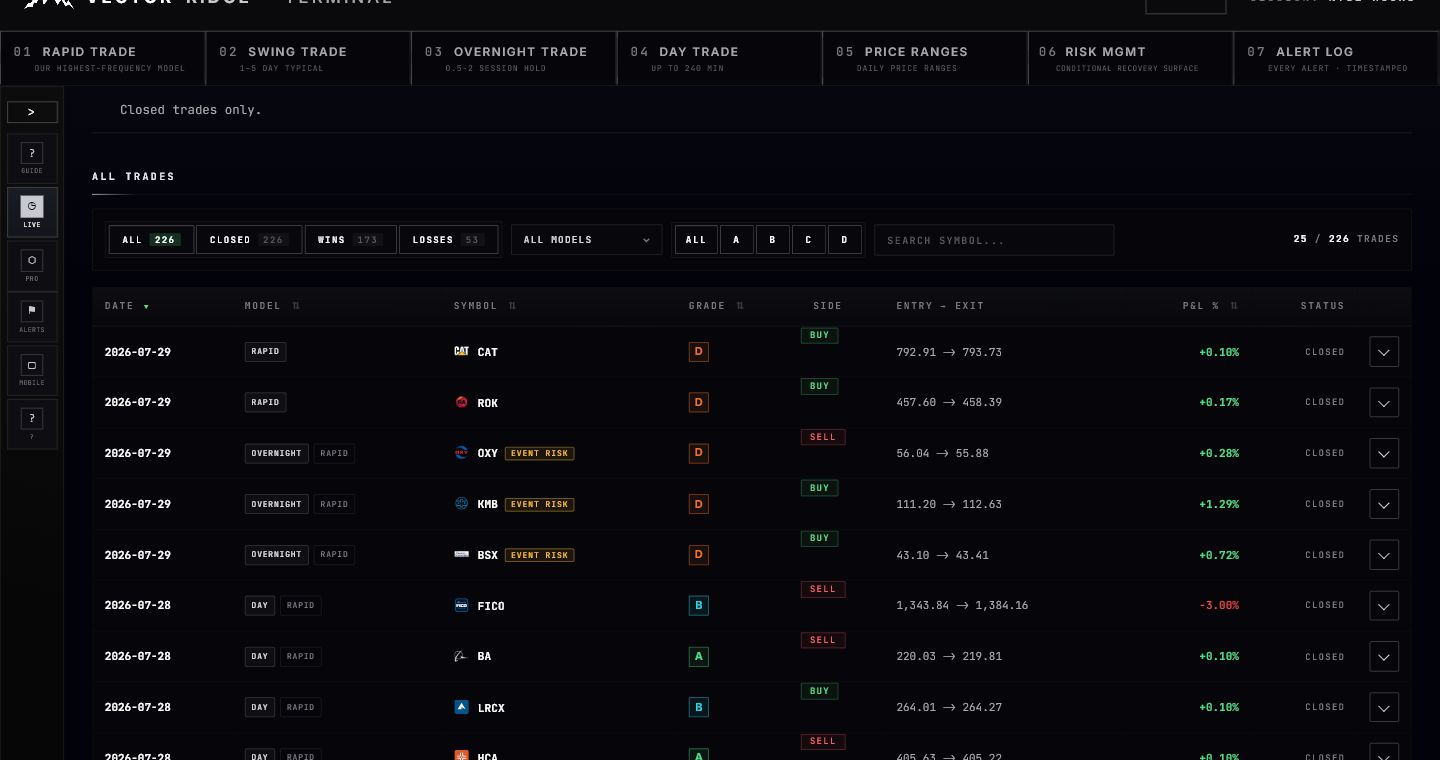
1Use the model filter to isolate native Swing records.
2Product tags can show Swing plus Rapid distribution while retaining one economic record.
3The collapsed row summarizes side, entry, exit and final P&L.
4Expand the row for the exact receipt and chart.
The expanded record
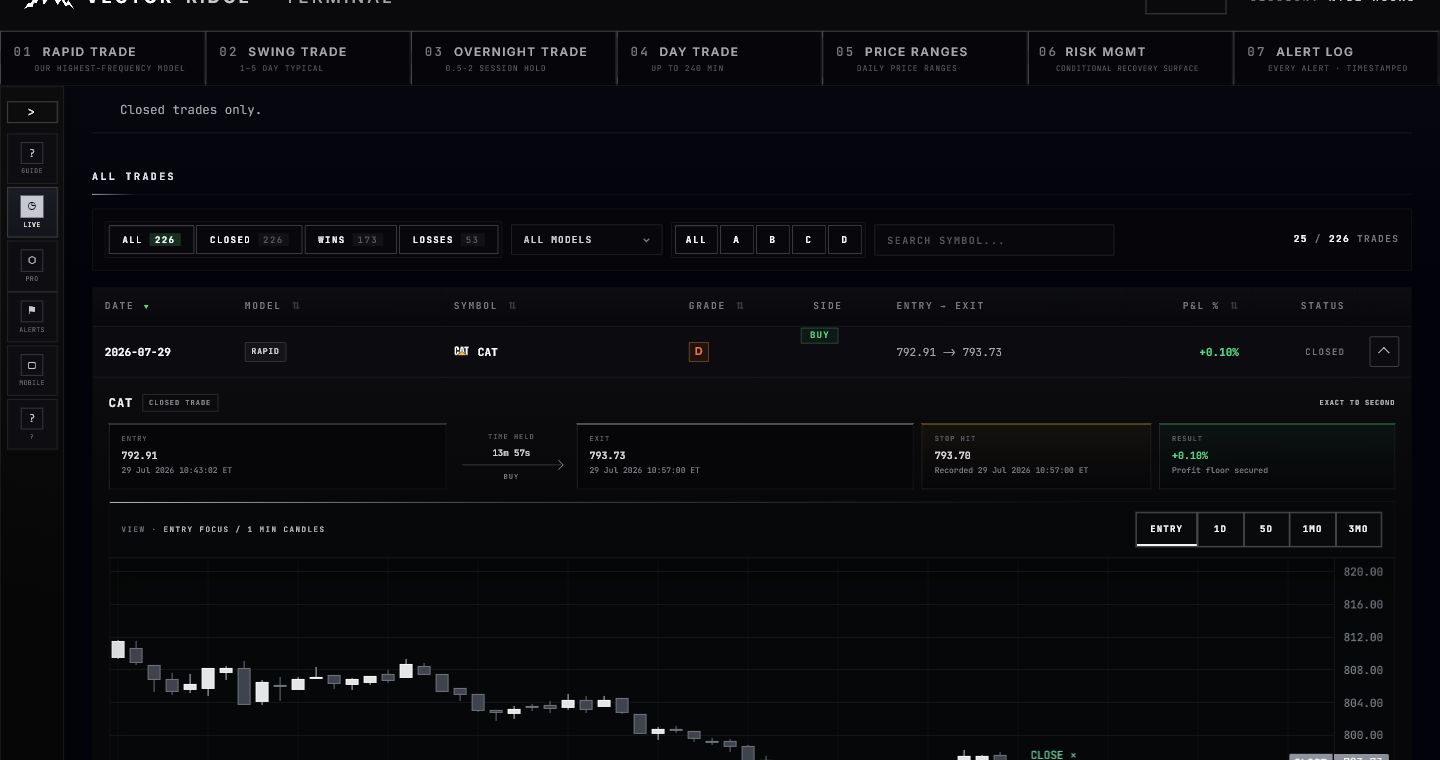
1The entry block preserves the recorded price and timestamp to the second.
2Time held is calculated from the recorded entry and exit timestamps.
3The close block records exit price, realized P&L and close reason.
Swing Trade / Chapter 09
Use the same hierarchy on mobile.
The mobile app compresses the table into cards, but the product, state, side, grade, entry, stop, live or closed price and P&L remain intact.
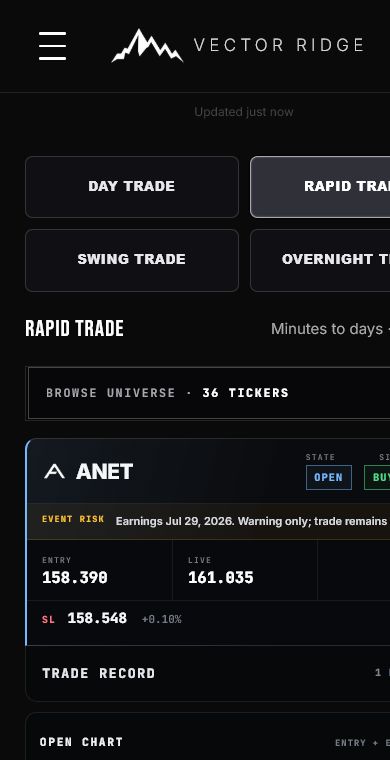
1Tap Swing Trade in the model selector to isolate native Swing cards.
2The compact card preserves state, side, entry, live price, stop and P&L.
3Open Chart expands the same Entry, 1D, 5D, 1M and 3M views.
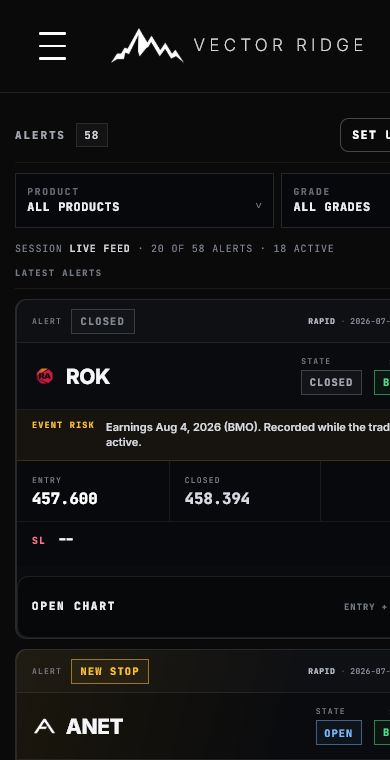
1Use Product and Grade filters to narrow the event stream without changing the underlying record.
2The top label tells you what happened: entry, open, new stop, event risk or closed.
3A stop-update alert should describe the new event rather than repeat the original entry.
Phone workflow
Tap Swing Trade
Do not read a Rapid, Overnight or Day card as a native Swing position.
Read the alert label and primary state
These explain what happened before you inspect the prices.
Open the chart only when needed
The drawer should remain open while you inspect or switch chart views.
Return to Alerts for chronology
Opening Alerts refreshes the feed so the newest Swing event appears first.
Swing Trade / Chapter 10
Know which surface is authoritative.
The live board, Alert Log and Performance answer different questions. Reliability comes from using the right one instead of expecting a single screenshot to do everything.
Current Swing card
Authority for the newest state, side, entry, current stop, live reference and open P&L.
Alert Log
Authority for the timestamped sequence of entry, updates, warnings and close.
Performance
Authority for the closed entry, exit, duration, reason and realized result.
Chart
Authority for the visual event history attached to the selected trade record.
Common questions
Does ENTRY NEAR mean a Swing position is open?
No. It means price is close to the model entry. Wait for BUY NOW or SELL NOW and the subsequent OPEN receipt.
Why does the stop differ from an older screenshot?
The row shows the current published manager level. Hover the warning icon or open the chart to see when the level changed.
Why can the same Swing trade appear in Rapid?
Rapid can distribute an eligible native Swing trade. The product badge preserves ownership and Performance deduplicates the economic record.
Does EVENT RISK close the position?
No. It is a warning layer unless the primary state separately changes to a close instruction.
Which P&L should I use after the trade closes?
Use the realized result in the expanded Performance record.
What if the chart opens narrow or partly blank?
Collapse and reopen it, then choose Entry focus. The chart resynchronizes after the row reaches its full width while preserving valid manual zoom and pan.
Ready
Open Swing Trade with the whole lifecycle in view.
Read the newest state, verify the current stop, use the Alert Log for chronology and Performance for the final receipt.